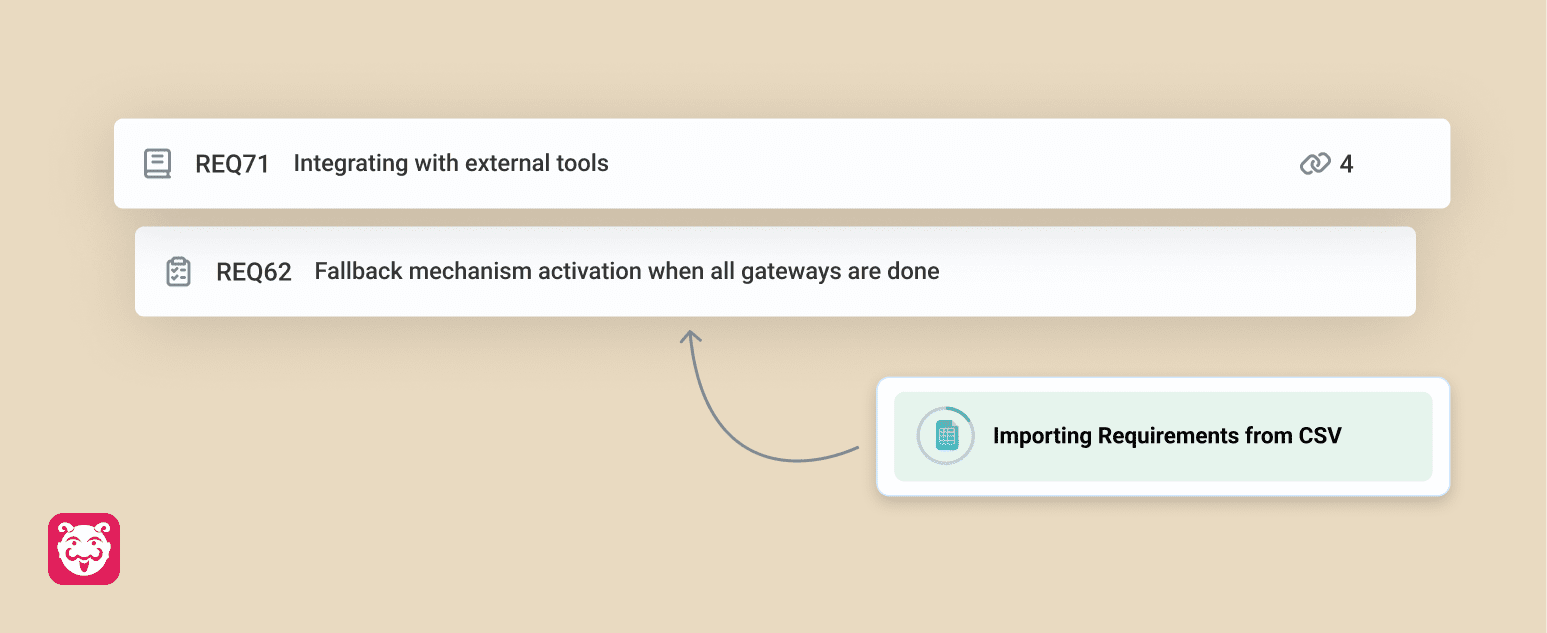
Import Requirements with CSV
Adding requirements one by one can slow teams down — especially during migrations or large-scale planning. This update makes it faster and easier to bring in multiple requirements at once.
Introducing CSV Import for Requirements
You can now import requirements in bulk using a CSV file. With guided mapping and validation, Bugasura ensures your data is accurate before it gets added — saving time and reducing manual effort.
Why Use CSV Import?
Save Time: Add multiple requirements in minutes instead of hours
Reduce Errors: Minimize manual entry mistakes with structured import
Easy Migration: Quickly move requirements from other tools
Better Control: Validate and preview data before importing
Usage
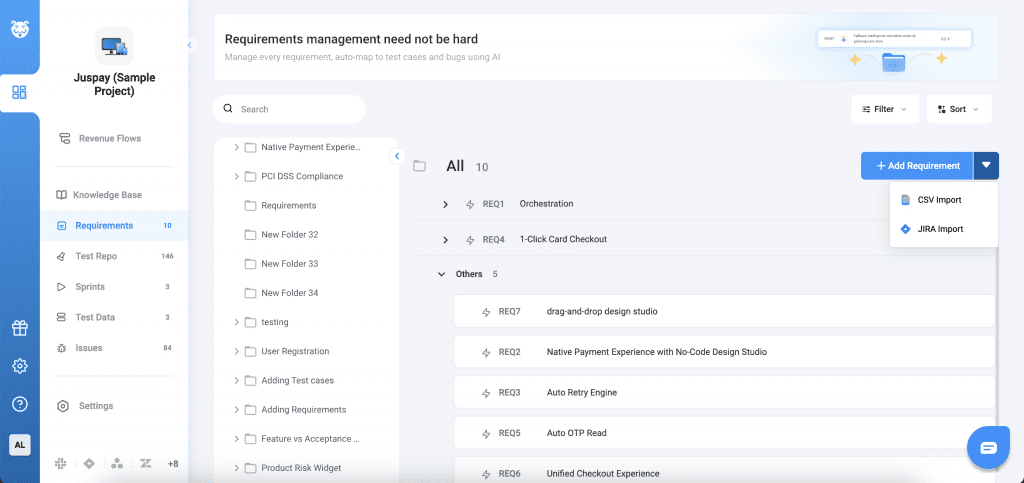
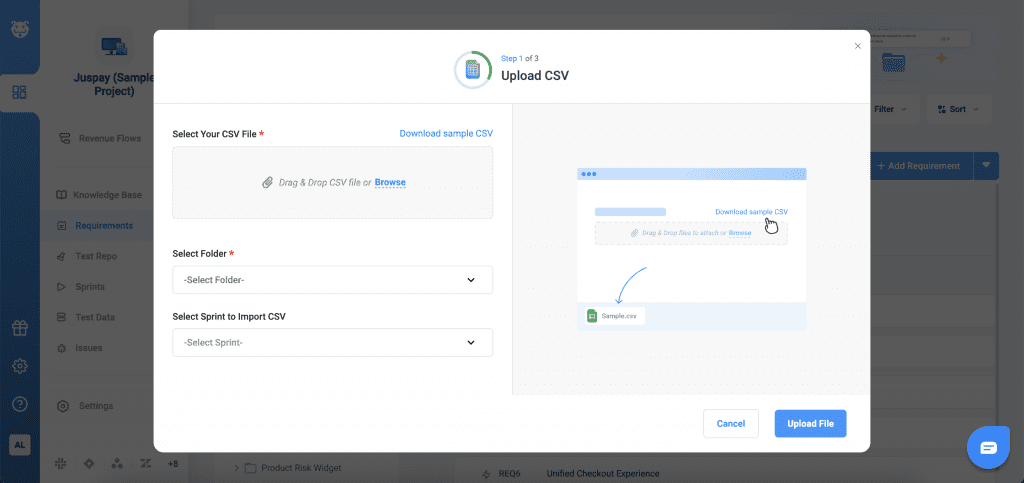
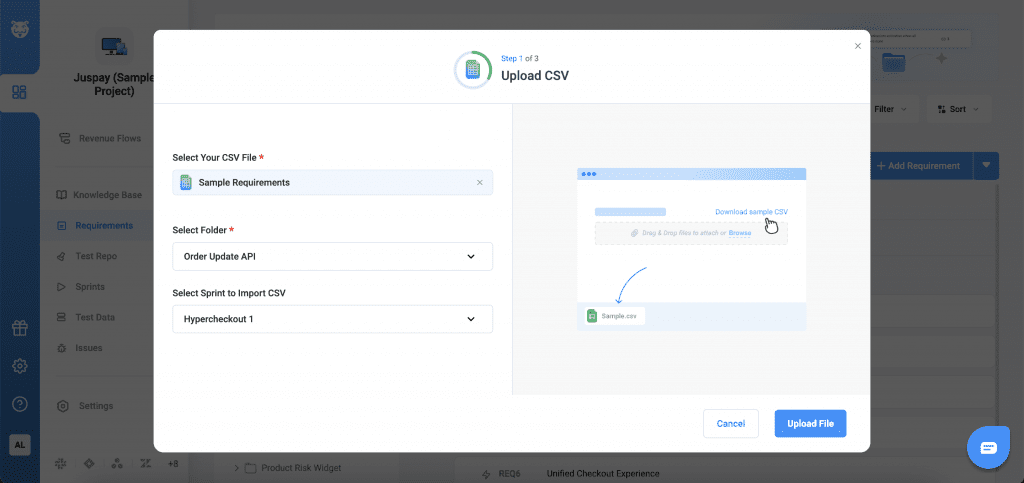
To get started, Go to the Requirements module → Import via CSV. Download the sample CSV template (optional). Upload your CSV file. Map CSV columns to requirement field. Review validation errors (if any)
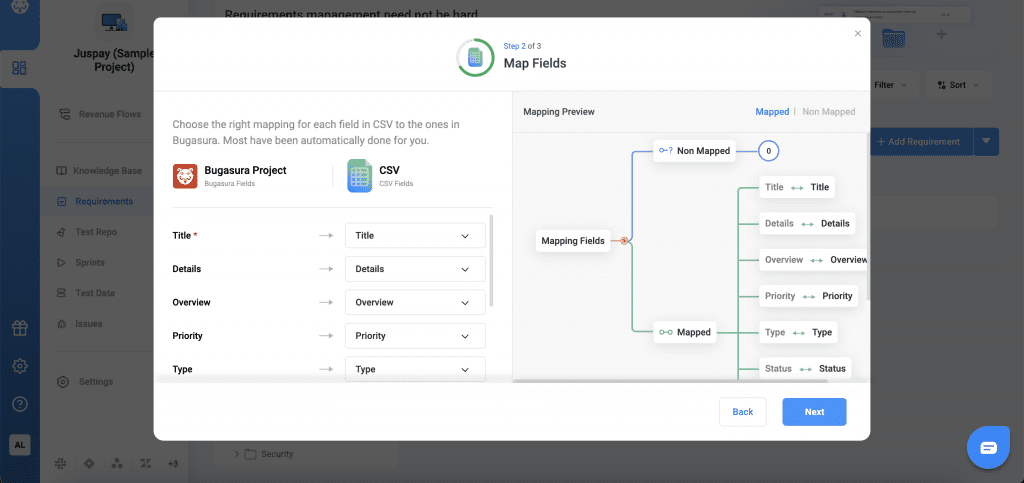
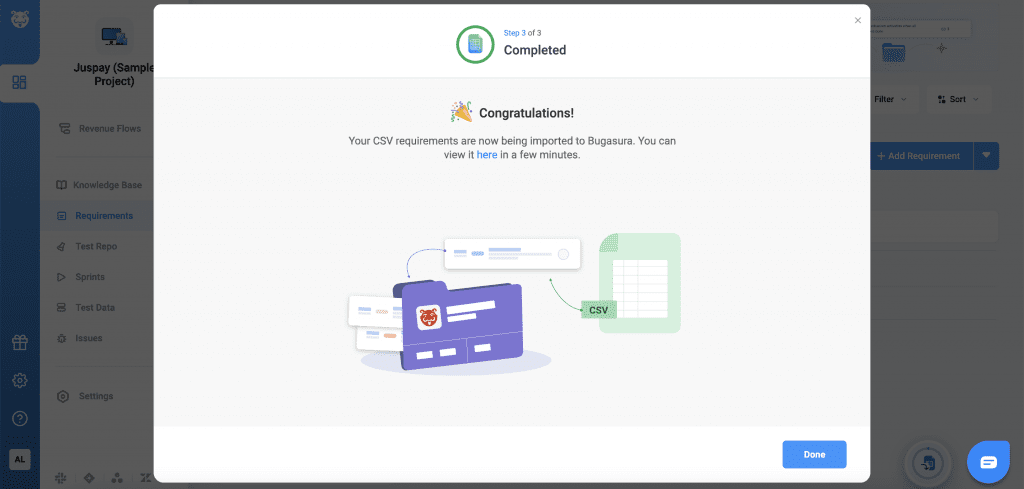
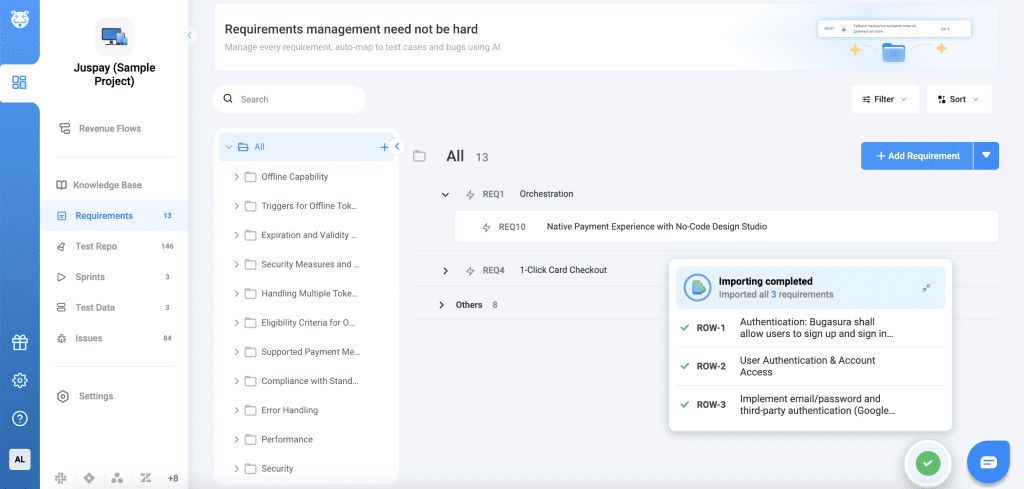
Preview mapping of the fields before import. Confirm to start the import. After import, View summary of successfully added requirements. Identify failed rows with clear error messages